 EZVIZ no longer supports Internet Explorer or earlier versions, and the site may not behave as expected. Please upgrade to a newer browser.

Installing an EZVIZ outdoor camera is simple when you follow the right procedure. Proper planning is key before mounting; review what to consider before installing your outdoor security camera to guarantee total and strategic coverage.
This guide covers step-by-step app setup, solutions for QR code recognition errors, and advice on selecting the best EZVIZ outdoor cameras for your specific security needs.
An outdoor WiFi security camera is an internet-connected device that monitors exterior areas from your smartphone. These cameras form a core pillar of modern home security, offering remote access, smart alerts, and real-time human or vehicle detection via the EZVIZ app.
• Download the App: Get the official EZVIZ app, create your account, and log in.
• Reset the Device: If the unit was previously configured, hold the Reset button for 10–15 seconds until it prompts a restart.
• Connect to WiFi: Ensure your smartphone is connected to a compatible 2.4 GHz WiFi network during initial configuration.
• Scan the QR Code: Use the app scanner to scan the code located on the camera label.
• Check Signal Strength: Before drilling into the wall, confirm that the WiFi signal is strong at the chosen mounting spot.
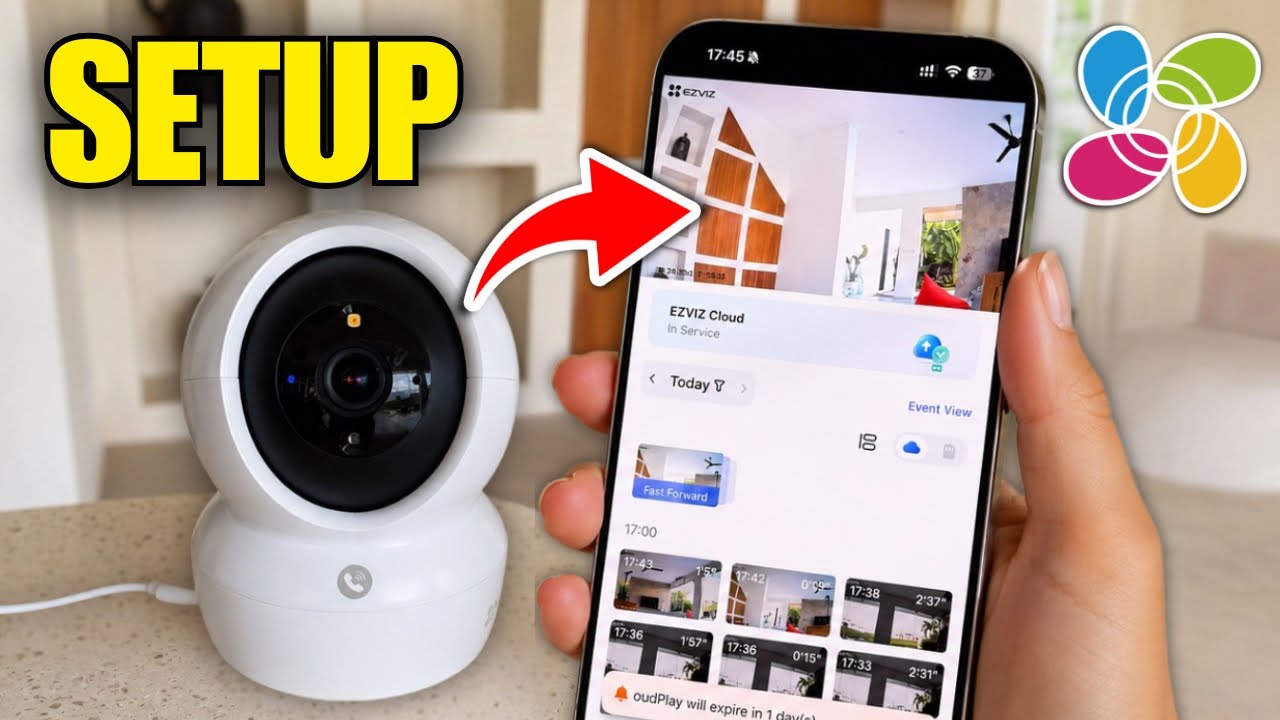
Watch this video tutorial: How to set up my WiFi camera with the EZVIZ app?
If the app fails to scan the code during setup, sticker glare, dim lighting, or camera lens focus may be responsible. To resolve this, clean your phone camera lens or manually add the device by entering the serial number and verification code printed on the product label.
| Situation | Recommended Model | Ideal Use Case |
|---|---|---|
| Home with stable WiFi | H8c / H3c | Entrances, garages, and backyards |
| Wider visual coverage | H9c Dual 2K | Building corners and wide frontages |
| Vacation home or job site | HB8 Lite 4G | Properties without fixed broadband |
| Off-grid autonomy | HB90X Dual 4G Kit | Isolated land and remote properties |
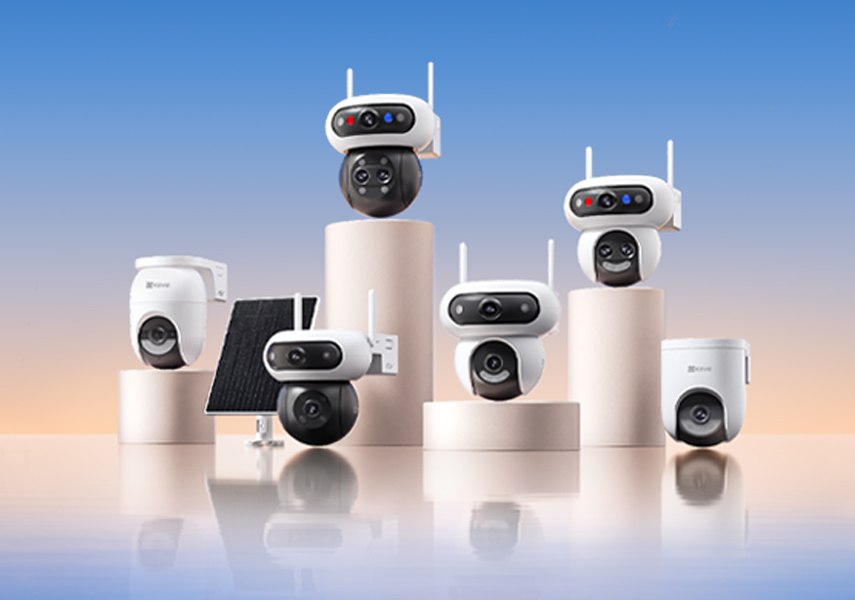
Prioritize Color Night Vision and Smart Vehicle Detection. Models like the H8c or the dual-lens H9c Dual 2K auto-track garage movement, making them ideal options for shared driveways or parking spaces.
It depends on internet access: if fixed broadband is available, a WiFi camera is ideal. For remote properties or off-grid land, a 4G camera like the HB8 Lite 4G offers total independence using mobile cellular data.
Yes, models built for exterior use feature weatherproofing certifications (such as IP65 or IP66 rating depending on the model) to ensure reliable operation against rain, dust, and temperature shifts.
Manually add the device in the EZVIZ app by typing in the serial number and model-specific verification code found on the physical sticker attached to the camera body.
Installing your EZVIZ outdoor camera lays the foundation for reliable home security. Always complete app configuration before mounting hardware, and pick a camera model tailored to your network setup. From suburban homes to remote estates, EZVIZ outdoor cameras deliver cutting-edge protection.
For additional tips, explore our guide on where to install security cameras at home to maximize your family's coverage.


 Store
Store